OrderCap help center
Set up OrderCap in a few minutes. Need a hand? Email support@centubo.com.
1. Install the app
- Open OrderCap on the Shopify App Store and click Install.
- Approve the permissions. OrderCap opens inside your Shopify admin.
2. Create your first order limit
- In OrderCap, click Create rule. Pick a template, for example Maximum per product, Sold in packs, Minimum order value or Maximum items per order. Custom order limit starts from scratch.
- Give the rule a name you'll recognise. Buyers never see it.
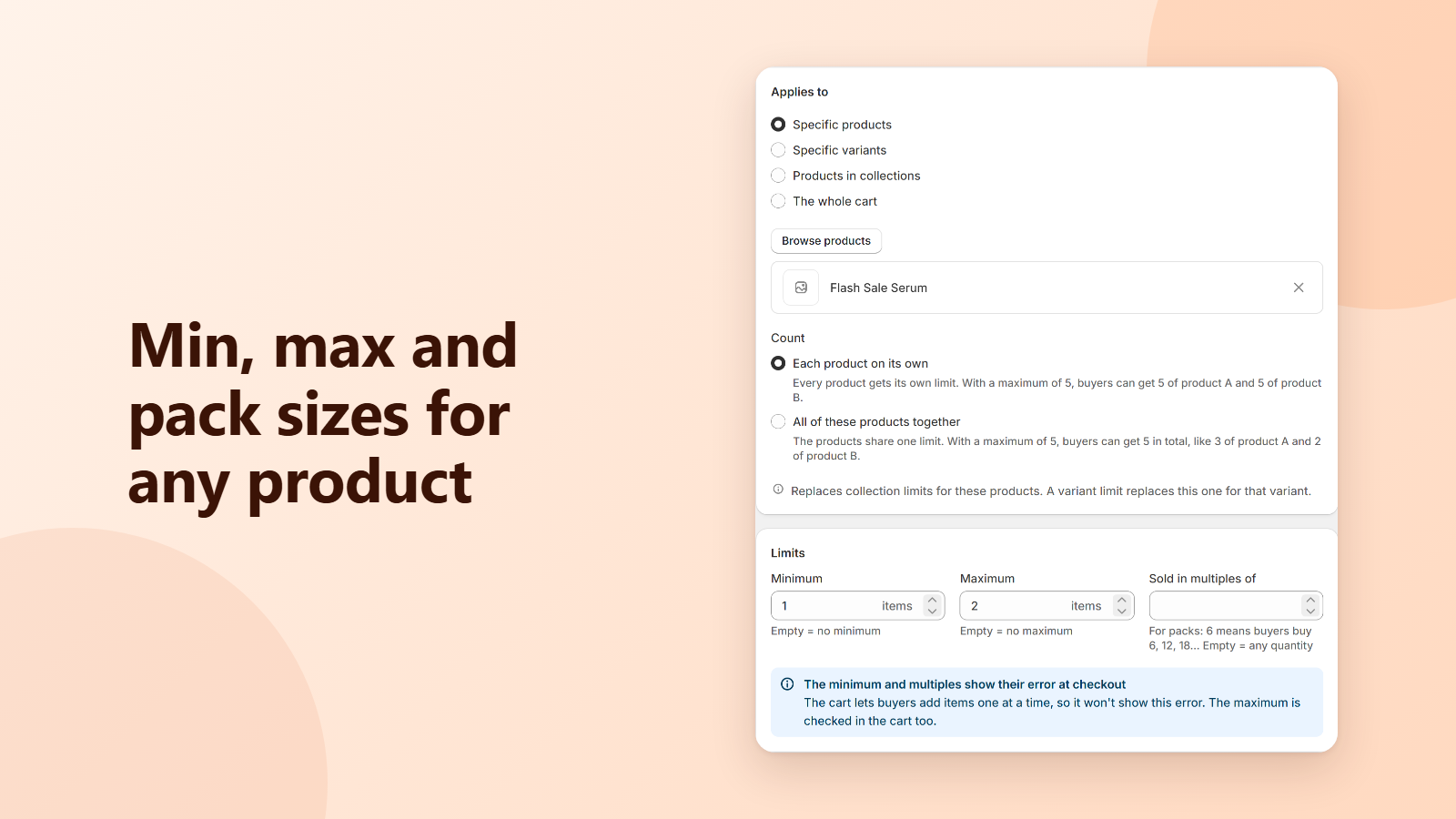
- Under Applies to, choose Specific products, Specific variants, Products in collections or The whole cart, then click Browse to pick them.
- For products and collections, choose Count: Each product on its own (every product gets its own limit) or All of these products together (they share one limit).
- Under Limits, set a Minimum, a Maximum, Sold in multiples of, or any mix of them. For the whole cart, choose whether the limit counts items or the order value.
- Keep Status on Active and click Save in the save bar. The rule applies at checkout within a few seconds.
How limits work together
- A maximum is checked in the cart and at checkout. A minimum and “sold in multiples of” are checked at checkout only.
- When a product has limits at more than one level, the most specific one applies: a variant limit replaces the product limit, and a product limit replaces a collection limit.
- Whole-cart limits and “All of these products together” limits apply on top of each product's own limit.
- Two active rules can't limit the same product, variant or collection at the same level. OrderCap tells you which rule already has it, so you can change that rule instead.
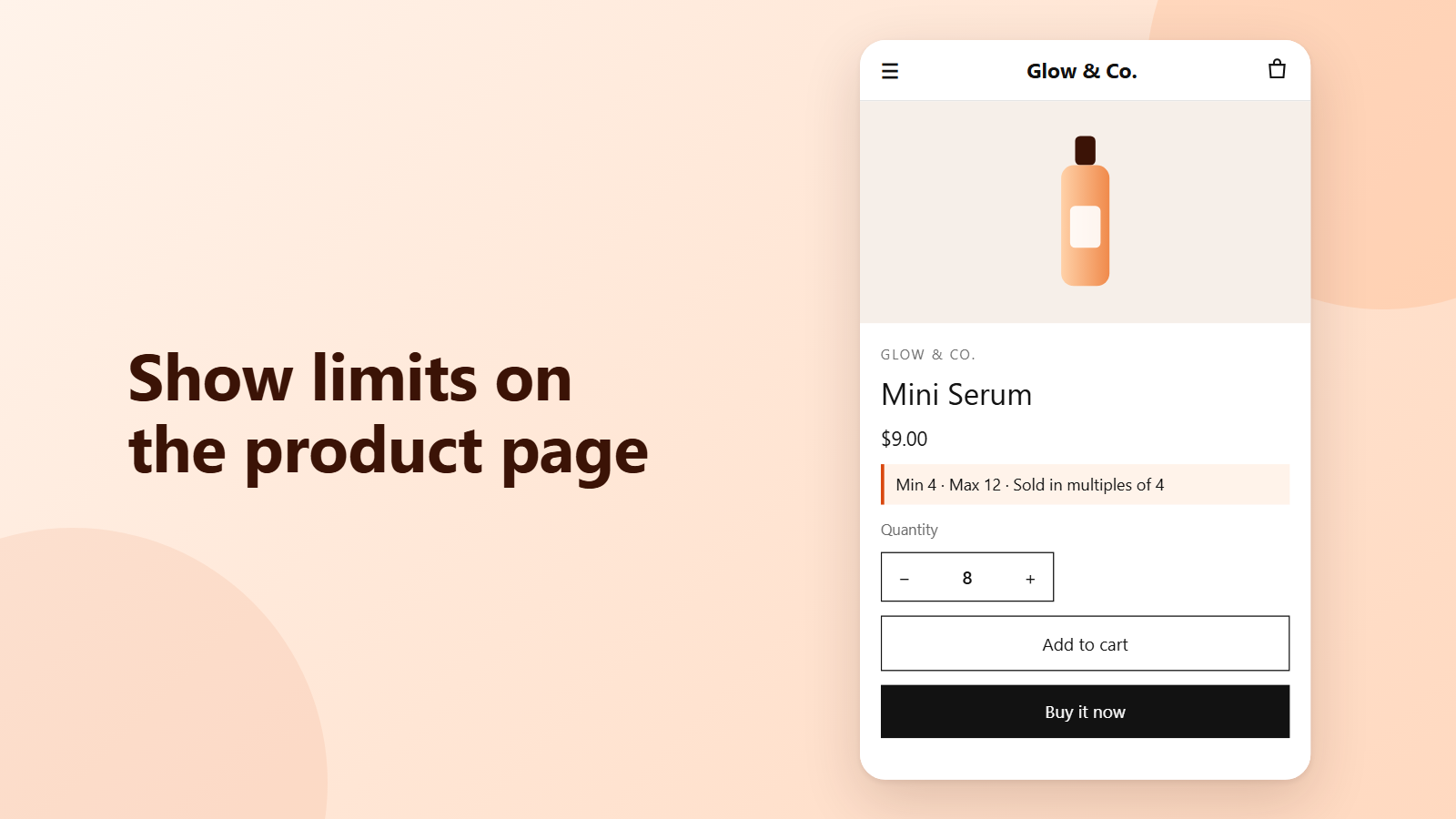
- Keep the maximum a multiple of the pack size. With Minimum 4, Maximum 12 and multiples of 4, buyers can order 4, 8 or 12.
Write your own messages
- Under Messages at checkout, replace the default text buyers see when a limit stops them. Leave a field empty to use the default.
- You can use placeholders: {min}, {max}, {multiple}, {product} (the product name) and {count} (items in the cart, for whole-cart limits).
- To translate, choose a language under Translate for buyers checking out in, and write the messages for that language. Buyers checking out in another language see your default text.
Show the limits on the product page (optional)
- In your Shopify admin, go to Online Store > Themes and click Customize.
- Open a product page, click Add block in the product information section and choose OrderCap limits.
- Drag the block near the quantity field and click Save.
- The block shows the limits for the selected variant, for example “Min 4 · Max 12 · Sold in multiples of 4”, and makes the quantity field step by the pack size.
- The block is only a hint for buyers. The real check always happens in the cart and at checkout, so limits apply even without it.
3. Hide, rename or reorder payment methods
- Click Create rule and pick Hide COD on large orders, COD only in some countries, Show a method first, or Custom payment rule.
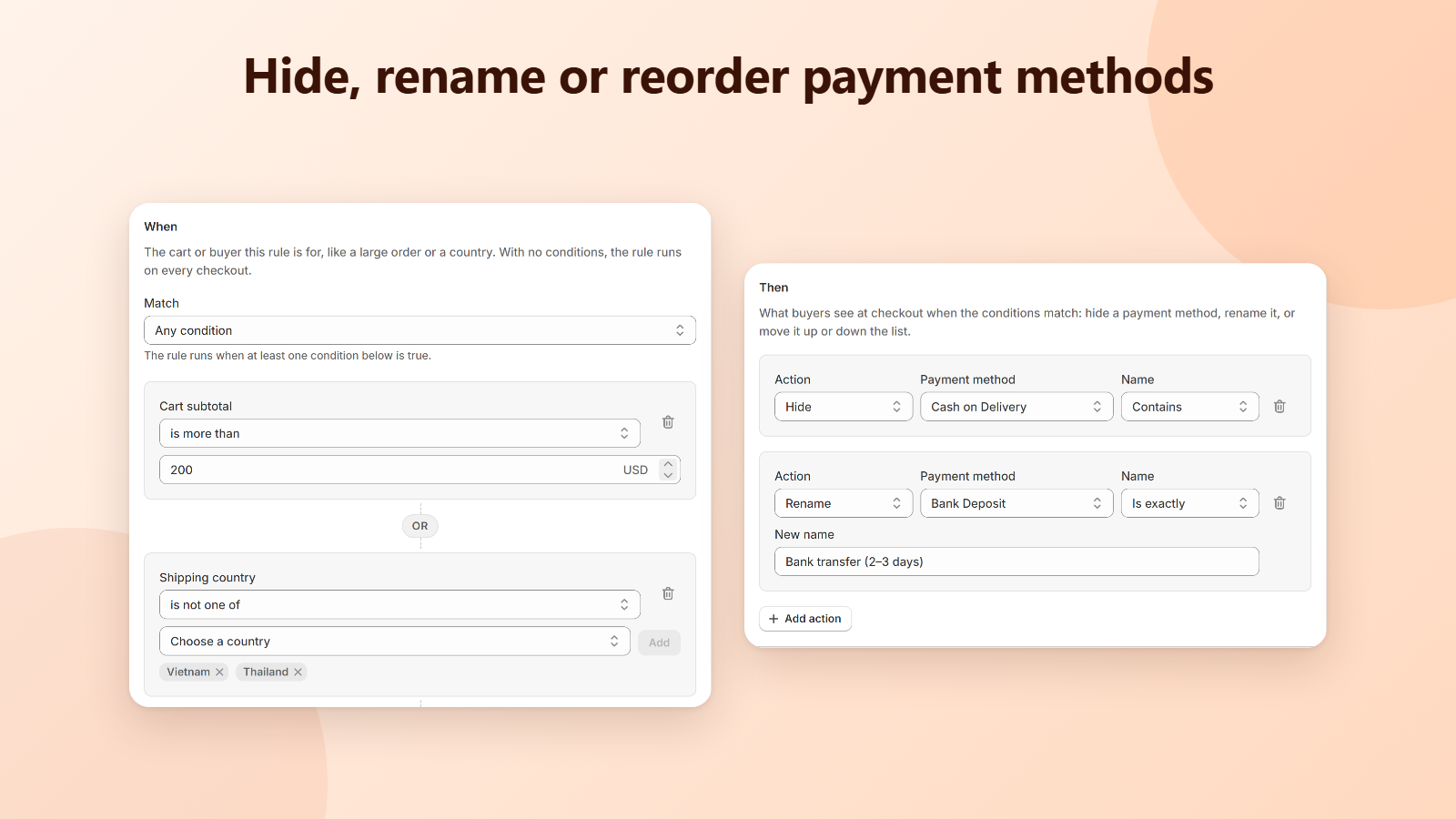
- Under When, add conditions: Cart subtotal (more or less than an amount), Shipping country, products or collections in the cart, or Customer tags. With no conditions, the rule runs on every checkout.
- Choose Match: All conditions (every condition must be true) or Any condition (at least one is true).
- Under Then, add actions: Hide, Rename or Move. Enter the payment method name as it appears at checkout, and choose Contains or Is exactly.
- Click Save. Payment rules run in the order of the Rules page; use the arrows there to run a rule earlier or later.
4. Test in the simulator
- Open Test rules in the app menu.
- Under Test cart, add products and set the quantity and price of each.
- Under Buyer, choose the shipping country and enter customer tags (leave empty for a guest). Under Where, choose the cart or checkout, since some limits are only checked at checkout.
- Edit Payment methods at checkout to match your checkout, one per line, then click Run test.
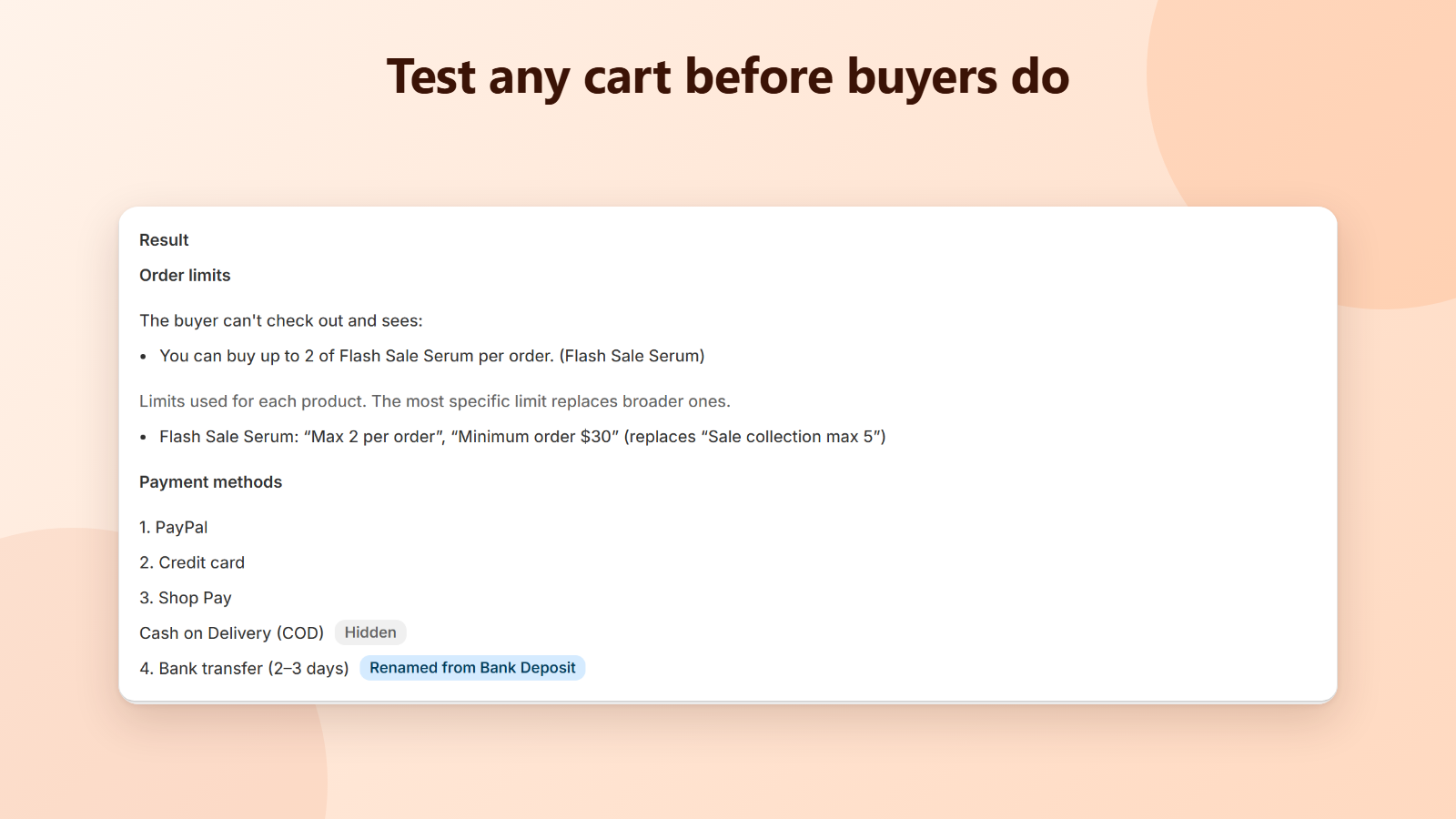
- The result shows the message the buyer would get and the payment methods left after your rules. Nothing is sent to your store.
5. Try it at checkout
- Place a test order on your store, for example with Shopify's Bogus Gateway on a development store.
- Add more than the maximum of a limited product: the cart refuses it with your message.
- Add a quantity under the minimum or not a multiple of the pack size: checkout shows the message and the order can't be placed until the quantity is fixed.
- For a payment rule, check out with a cart that meets the conditions and one that doesn't, and compare the payment methods.
Pause a rule or all rules
- To stop one rule, open it, set Status to Paused and save. It stays on the Rules page.
- To stop everything at once, click Pause all rules on the home page. Checkout then runs without any limits or payment rules. Click Resume rules to apply your Active rules again.
- The home page also shows how many orders were placed this month and, for each payment rule, how many orders matched its conditions.
Troubleshooting
- A limit doesn't apply: check that the rule is Active and saved, that Pause all rules is off, and that the product is in the rule. Remember that minimums and multiples are checked at checkout, not in the cart.
- A different limit applies than expected: a more specific limit wins (variant over product over collection). Open the product's other rules on the Rules page.
- A payment method isn't hidden or renamed: the name must match what buyers see at checkout. Try Contains with a shorter part of the name, and test the cart in the simulator.
- A banner says your rules aren't updating at checkout: open a rule and save it again. If it keeps failing, email us.
- Still stuck? Email support@centubo.com with your store URL and a screenshot.
FAQ
Does it work on my Shopify plan?
Yes. Order limits and payment rules are Shopify Functions, which work on every Shopify plan. You don't need Shopify Plus.
Where are the limits checked?
A maximum is checked as soon as the item is added to the cart and again at checkout. A minimum and “sold in multiples of” are checked at checkout only, because a buyer who adds items one at a time would otherwise be refused the first one.
Can buyers get around a limit?
Not through the storefront. The check runs inside Shopify's cart and checkout, so it also applies to Buy it now, express checkouts like Shop Pay and PayPal, and cart links.
What if a product has more than one limit?
The most specific limit wins: a variant limit replaces the product limit, and a product limit replaces a collection limit. Whole-cart limits and “all these products together” limits apply on top. OrderCap won't let you save two active rules that limit the same product at the same level.
Which payment methods can I hide or rename?
Payment methods are matched by the name buyers see at checkout, for example Cash on Delivery, Bank Deposit or PayPal. Choose “Contains” to match part of the name or “Is exactly” for the full name, and check the result in the simulator and at checkout.
Does OrderCap slow down my store or checkout?
No. The rules run inside Shopify as Functions, not on our servers, and the product page block reads your theme's data without calling us.
Can I turn everything off quickly?
Yes. Click Pause all rules on the home page and checkout runs without any of your limits or payment rules. Your rules are kept, and Resume rules turns them back on.
What happens if I uninstall?
Your limits and payment rules stop applying at checkout right away. Your OrderCap data is deleted 48 hours after uninstall, as Shopify requires.
How do I get help?
Email support@centubo.com. We usually reply within one business day.